Mac screen recorder
A free screen recorder for Mac, with your Mac’s sound
ClipMe for Mac records your whole screen, one window or an area you draw, with your voice, your Mac’s own sound and your camera in a bubble. The link is ready the moment you stop. Native, signed by Apple, macOS 14 or later.
Free plan · No account to record or share · macOS 14 or later
On a phone? ClipMe records on a computer or Chromebook, so open this page there.
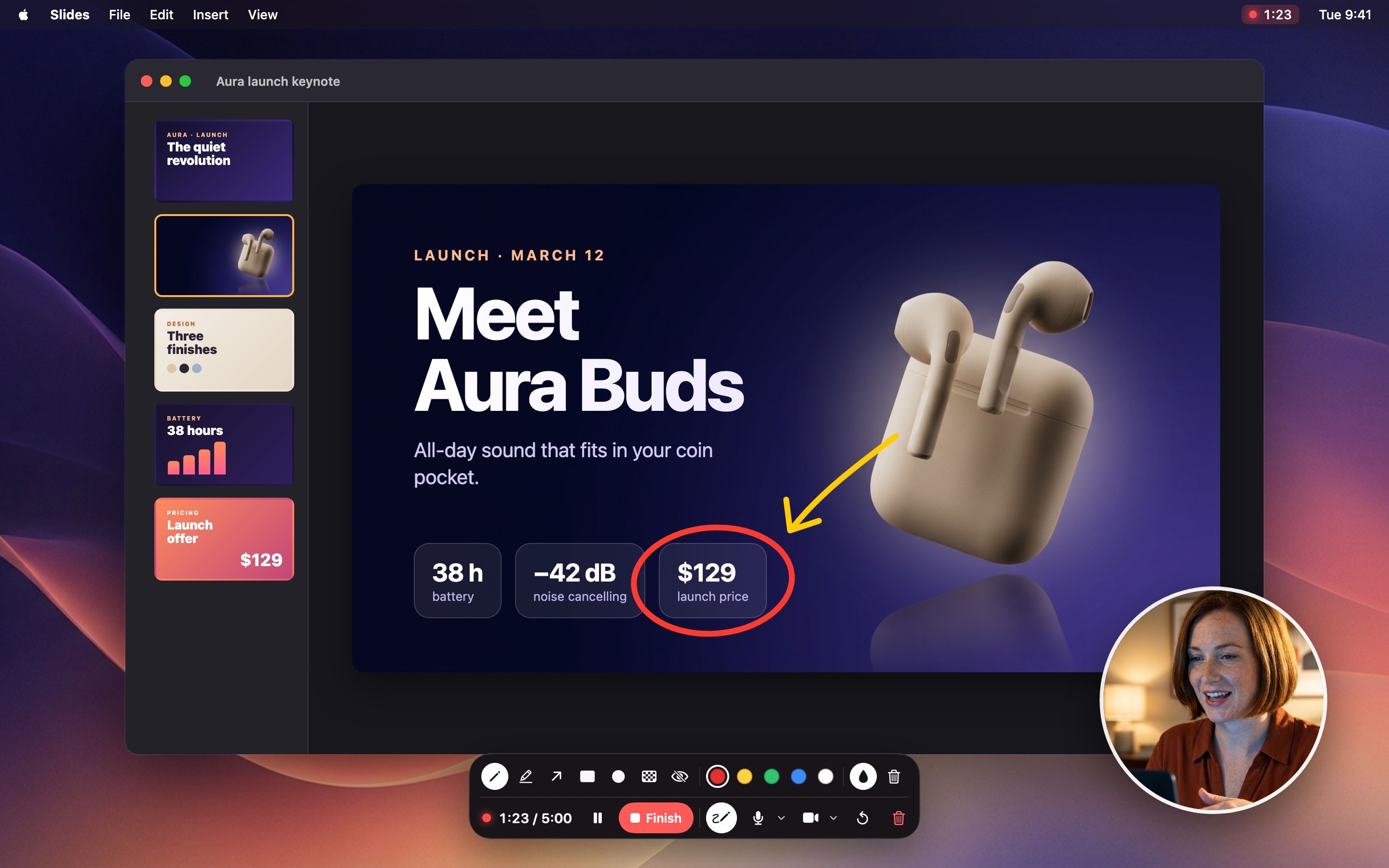
Everything the Mac’s own recorder leaves out
Screen, window or area
Record a whole display, one app’s window (it follows the window as you move it) or an area you draw.
Your Mac’s sound
The sound your Mac plays goes in the video with your mic: a demo’s audio, a call, a song. The Mac’s built-in recorder and Chrome can’t record it.
Your camera in a bubble
A round or rounded camera bubble you can drag anywhere, or your camera side by side with the screen.
Draw, blur and redact
Pen, highlighter, arrows and boxes on top of any app, plus blur and redact boxes over anything private, all burned into the video.
A link when you stop
ClipMe uploads while you record, so the share link is on your clipboard as soon as you stop. Free up to 5 minutes at 1080p.
Stay in control
Pause, start over or switch microphone and camera mid-take, from a small card that never ends up in the video.
ClipMe vs the Mac’s built-in recorder
| Feature | ClipMe for Mac | macOS Screenshot (⇧⌘5) |
|---|---|---|
| Your Mac’s own sound | Yes, with your mic | No, the mic only |
| Camera bubble | Yes, drag it anywhere | No |
| Draw on screen | Pen, highlighter, arrows, boxes | No |
| Blur private things | Blur and redact boxes | No |
| Pause and resume | Yes | No |
| Share | A link the moment you stop | A file on your desktop |
| Price | Free up to 5 minutes at 1080p; Pro $8 a month | Free |
The Mac app, the extension or the browser?
On a Mac, the app records the most: the whole screen with your Mac’s sound, any app, and no browser tab to keep open. On Windows or a Chromebook, or to record one browser tab with its sound, use the Chrome extension. Can’t install anything? The online screen recorder runs in a normal tab.
Frequently asked questions
Is ClipMe for Mac free?
Yes. Recording, sharing a link and drawing are free, with no account needed to record. Free recordings are up to 5 minutes at 1080p with a small ClipMe mark. Pro ($8 a month or $72 a year) removes the time limit and the mark, records up to 1440p and adds view analytics.
Can it record my Mac’s internal audio?
Yes. ClipMe records the sound your Mac plays together with your microphone, through Apple’s own screen capture, with no extra audio driver to install. The Mac’s built-in recorder and screen recorders that run in Chrome can only record your microphone.
Which Macs does it run on?
Any Mac on macOS 14 or later. It is a native app, signed and notarized by Apple, and downloads as a regular disk image.
Why does it ask for Screen & System Audio Recording?
macOS asks you once, for any app that records the screen. ClipMe only records while you are recording, and the control card and the camera preview are kept out of the video.
What happens if my Wi‑Fi drops mid-recording?
Nothing is lost. The recording is written to your Mac as you go, and the upload carries on, or starts again, when you are back online. You get a notification when the link is ready.
Do I need the Mac app if I have the Chrome extension?
No, both are free and both make the same kind of link. The Mac app is the one to use for your Mac’s own sound, apps outside Chrome and the drawing and blur tools on top of any window.
Keep reading
Record your Mac in a minute
Download ClipMe for Mac, press record, and share a link the moment you stop. Free up to 5 minutes.