Guide · Google Meet
How to record a Google Meet call, on any account
Meet’s Record button only appears on some paid Google plans, and only for some people in the meeting. A Chrome extension records the Meet tab directly: everyone’s audio, your microphone and the shared screen, as an MP4 you can download. Instant link is on by default and uploads a copy, so turn it off first for a private meeting.
Free plan · No account to record or share · Chrome and ChromeOS
On a phone? ClipMe records on a computer or Chromebook, so open this page there.
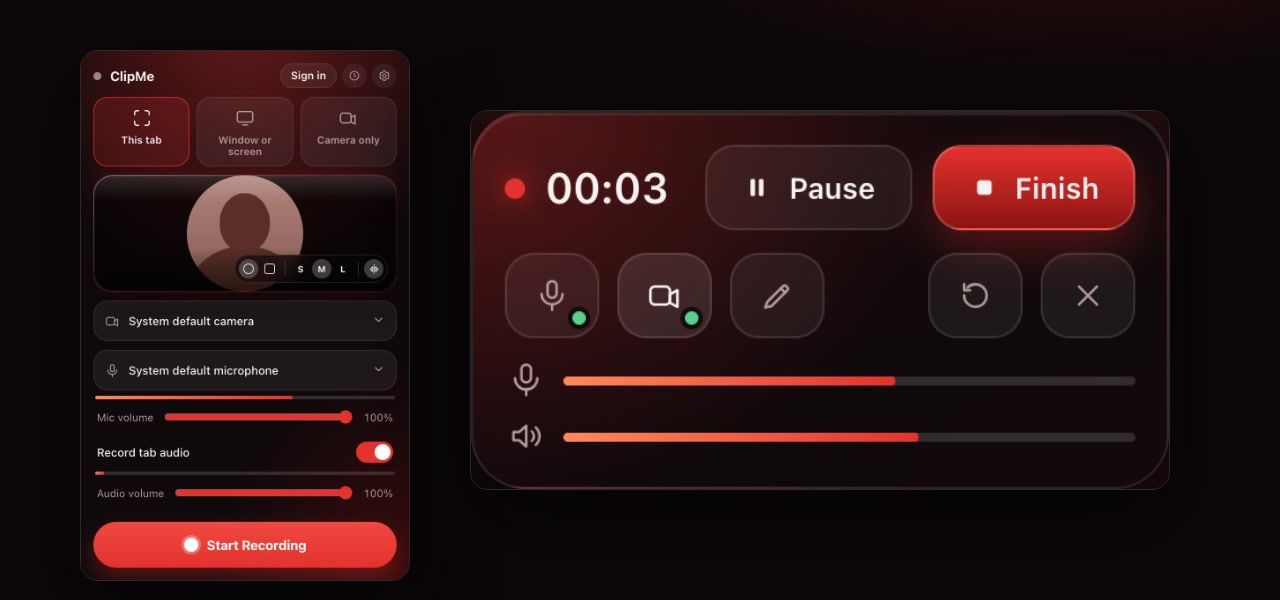
Record Google Meet with ClipMe
Join the meeting in Chrome
Open the call at meet.google.com as usual.Open ClipMe on the Meet tab
Click the ClipMe icon while you are on the Meet tab and choose This tab. That records exactly this tab, never a different one.Turn on tab audio and your mic
Tab audio records the other people; your microphone records you. Wear headphones so their voices are not picked up twice.Decide whether to upload
Instant link is on by default: it uploads a copy and makes a link anyone who has it can open. For a private meeting, turn it off in the popup and nothing leaves your computer.Tell everyone, then press Record
Say that you are recording before you start. Meet does not announce extension recordings for you.Stop when the call ends
Stop from the control bar or the ClipMe icon. The review page opens with the video, ready to trim and download as MP4.
Meet’s recorder vs recording the tab
| Feature | ClipMe (record the tab) | Meet’s Record button |
|---|---|---|
| Plans | Any Google account, free included | Some paid Workspace, Education and Google One plans |
| Who can record | Anyone in the call, on their own computer | The host, or people the host’s settings allow |
| Where it is saved | Your computer as MP4, plus an uploaded copy unless you turn Instant link off | The organizer’s Google Drive |
| Participants notified | No, so announce it yourself | Yes |
| Trim before sharing | Yes | No |
Checked on against: Google Meet recording help. Prices and limits change, so check the linked pages before you decide.
Recording meetings responsibly
Recording laws differ by country and state. Some places require consent from everyone on the call, not just you. The simplest rule: announce the recording at the start and stop if someone objects. Your workplace or school may have its own policy too.
Frequently asked questions
Why don’t I see a Record button in Google Meet?
Meet’s own recording is only included in some paid plans, such as Google Workspace Business Standard and above, Education Plus for staff, and Google One plans with 2 TB or more. On a free personal account or many school accounts the button is not there.
Can I record a Google Meet without being the host?
With Meet’s built-in recorder, it depends on your plan and the host’s settings. With ClipMe you record the Meet tab on your own computer, so it works in any meeting you can join. Always tell the other people you are recording.
Will the recording include my voice and everyone else’s?
Yes, if you record the Meet tab with tab audio on and your microphone on. Tab audio carries the other participants; the mic carries you. Each has its own volume slider and meter.
Do other people get notified when I record with an extension?
No. Meet only announces recordings made with its own Record button. That is why you should say out loud, at the start, that you are recording, and get consent where the law requires it.
How long can I record a Google Meet call?
On ClipMe Free, up to 5 minutes per recording; the recording then stops and is saved. Pro has no time limit. Either way ClipMe writes to disk every second, so even if Chrome crashes in the middle of a long call, the recording is recovered.
Where does the recording go?
Into ClipMe’s library on your computer, and an MP4 wherever you choose to download it. Instant link is on by default, so ClipMe also uploads a copy while you record and makes a link anyone who has it can open. For a private meeting, turn Instant link off in the popup before you record and nothing leaves your computer. Meet’s built-in recordings go to the organizer’s Google Drive instead.
Keep reading
Record your next Meet call
Click the ClipMe icon, then Record. Free to record and share with no account, and a free account gets you an MP4 you can actually open. Pro removes the time limit and the watermark.