Guide · ChromeOS
How to screen record on a Chromebook
There are three ways to do it: the Screen capture tool built into ChromeOS, a Chrome extension like ClipMe, and a web recorder for school Chromebooks that block extensions. Here is each one, step by step, and when to use which.
Free plan · No account to record or share · Chrome and ChromeOS
On a phone? ClipMe records on a computer or Chromebook, so open this page there.
Option 1: The built-in Screen capture tool
Good for a quick clip you will watch on the same Chromebook. It saves video as WebM.
Open Screen capture
Press Shift + Ctrl + Show windows, or open Quick Settings and choose Screen capture.Choose Screen record
Then pick full screen, a partial screen or a window.Turn on audio if you need it
Open Settings in the capture bar and choose Microphone, Device audio, or both. You can also turn on the front camera here.Start recording
Click the screen, drag an area or click a window.Stop
Select Stop recording at the bottom right, or press Search + Shift + X. The file goes to Downloads.
Steps from Google’s Chromebook screen capture help.
Option 2: Record with the ClipMe extension
Use this when the video has to open anywhere, when you want to pause or trim, or when you want your webcam in a bubble you can move.
Add ClipMe to Chrome
Install it from the Chrome Web Store and pin it so the icon stays in the toolbar.Pick what to record
Click the icon and choose This tab, Window, Screen or Camera. Turn on your mic and, if you like, the camera bubble.Check your sound
Speak and watch the mic meter move. If it stays flat, pick another microphone from the list before you start.Record
Press Record. Pause whenever you need to, and draw on the page to point things out.Stop and save
Stop from the control bar or the icon. The review page opens straight away: trim it, then download an MP4.
Option 3: A school Chromebook that blocks extensions
If your Chromebook is managed by a school or company, extensions might be blocked. Open the online screen recorder in a tab instead. Chrome asks which screen, window or tab to share, you record, and when you stop you get a link to send to your teacher. Nothing is installed.
If screen capture itself is disabled by policy, no recorder will work, and the fix is a request to your administrator.
Which one should you use?
| Feature | ClipMe extension | Built-in Screen capture | Online recorder |
|---|---|---|---|
| Install | Chrome Web Store, once | None, part of ChromeOS | None, runs in a tab |
| Saved as | MP4, plus an uploaded copy unless Instant link is off | WebM in Downloads | A share link, uploaded while you record |
| Audio | Mic and tab audio | Microphone, device audio, or both | Mic and whatever Chrome’s picker shares |
| Works when extensions are blocked | No | Yes, unless your admin turns off screen capture | Yes, unless your admin turns off screen sharing |
| Best for | Lessons and videos that must open anywhere | A quick clip you will watch on this Chromebook | Managed Chromebooks that block extensions |
Checked on against: Google’s Chromebook screen capture help. Prices and limits change, so check the linked pages before you decide.
Frequently asked questions
What is the shortcut to screen record on a Chromebook?
Press Shift + Ctrl + Show windows to open Screen capture, then choose Screen record. To stop, press Search + Shift + X or select Stop recording at the bottom right.
Where do Chromebook screen recordings go?
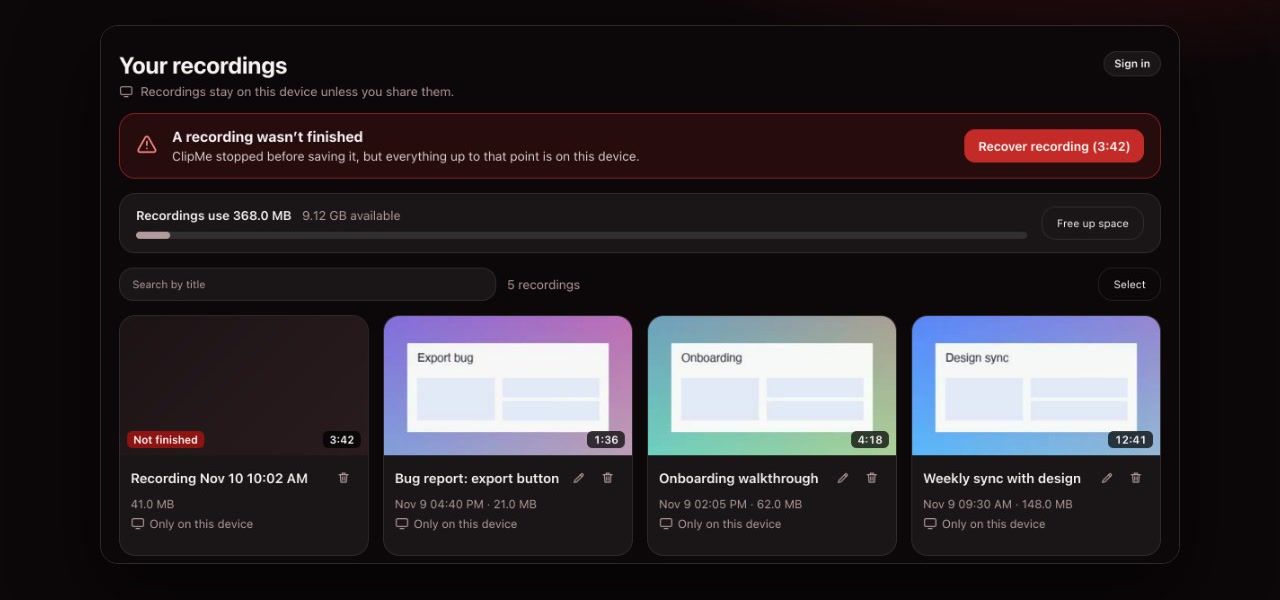
The built-in tool saves to your Downloads folder unless you pick another folder in its settings. ClipMe keeps recordings in its own library until you download them, and asks where to save each file. Instant link is on by default and also uploads a copy; turn it off in the popup to keep the video on your Chromebook.
How do I screen record on a Chromebook with audio?
In the built-in tool, open Settings in the Screen capture bar and choose Microphone, Device audio, or both. In ClipMe, turn on the mic and tab audio in the popup and watch the level meters move before you press Record.
Why won’t my Chromebook screen recording open on a Windows PC?
The built-in recorder saves WebM files, which the Windows Photos app and many editors do not open. ClipMe saves MP4, which they do.
Can I screen record on a school Chromebook?
Usually, yes. Your admin can turn off screen capture or block extensions. If ClipMe cannot be installed, try the online recorder on this site, which runs in a normal tab. ClipMe is for teachers and for students aged 13 and over.
Keep reading
Record your first video in two clicks
Click the ClipMe icon, then Record. Free to record and share with no account, and a free account gets you an MP4 you can actually open. Pro removes the time limit and the watermark.