Chromebook screen recorder
A free Chromebook screen recorder that saves MP4
Chromebooks only run web apps and extensions, so your screen recorder has to be one of them. ClipMe records a tab, a window, the whole screen or your webcam on ChromeOS, with your mic and the tab’s sound, and saves a video your teacher can open.
Free plan · No account to record or share · Chrome and ChromeOS
On a phone? ClipMe records on a computer or Chromebook, so open this page there.
Made for lessons, assignments and classrooms
MP4, not WebM
Videos open in Google Drive, Classroom, Windows Photos and QuickTime without converting.
Webcam bubble
Your face in the corner of a slide or a worksheet, and you can turn it off halfway through.
Pause between slides
Pause and resume as often as you like. The video has no gap and the sound stays in sync.
Draw on the page
Pen, highlighter, arrows and boxes, with ink that fades by itself so the screen stays clean.
Never lose a lesson
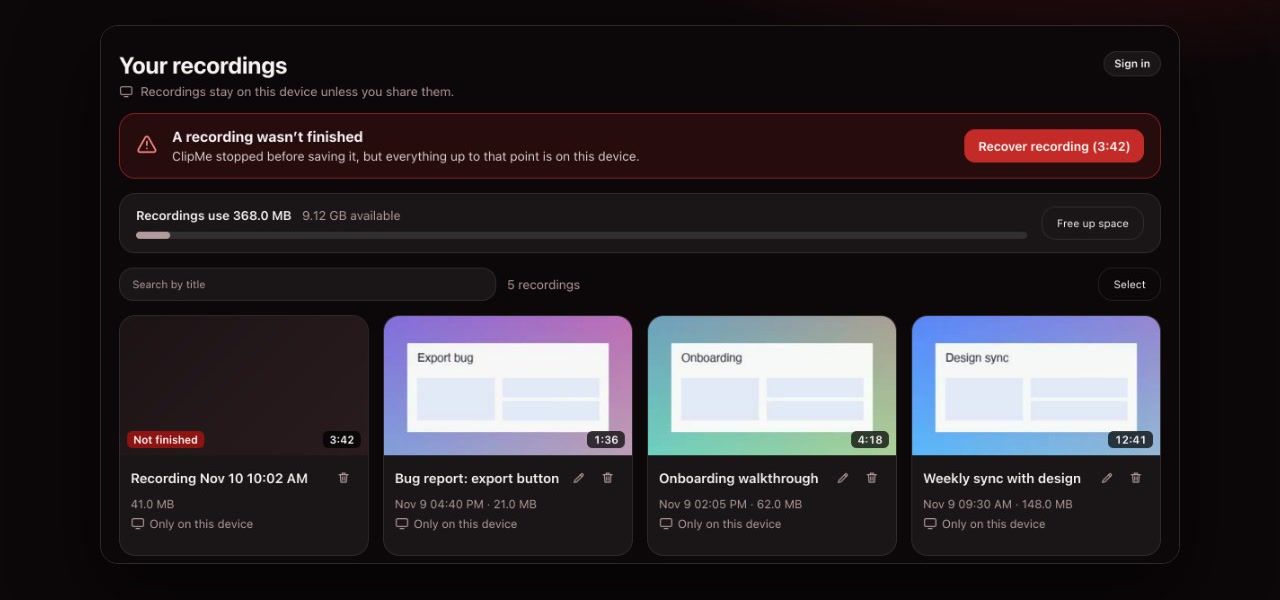
If the Chromebook sleeps or the tab closes, the recording is saved up to the last second.
No sign-up to record
Teachers and students 13 and over can record and share a link without creating an account. Downloading the video takes a free account.
ClipMe vs the Chromebook’s built-in recorder
| Feature | ClipMe extension | ChromeOS Screen capture |
|---|---|---|
| Video format | MP4 (H.264 + AAC) | WebM (or GIF without sound) |
| Record one browser tab | Yes, with that tab’s audio | Window or area only |
| Microphone and device audio | Yes, with separate volume sliders | Yes |
| Webcam | Draggable bubble, 3 sizes, 2 shapes | Front camera overlay |
| Pause and resume | Yes | No |
| Trim, cut and crop | Yes | No |
| Share link | Optional Instant link | No |
| Price | Free up to 5 minutes; Pro $8 / month | Free, built in |
Checked on against: Google’s Chromebook screen capture help. Prices and limits change, so check the linked pages before you decide.
When the extension is blocked
School-managed Chromebooks often only allow extensions an admin has approved. If the Chrome Web Store says “blocked by your administrator”, you have two options: ask IT to allow ClipMe, or use the online screen recorder, which runs in an ordinary tab and needs no install. It records your screen and camera and gives you a share link when you stop.
Frequently asked questions
Is ClipMe free on a Chromebook?
Yes. Install it from the Chrome Web Store like any extension. Recording, trimming and sharing are free with no account; downloading the MP4 needs a free account. Free recordings are up to 5 minutes at 1080p and carry a small ClipMe watermark. Pro ($8 a month or $72 a year) removes the time limit and the watermark, records up to 1440p and adds view analytics.
Why not just use the Chromebook’s built-in screen recorder?
The built-in Screen capture tool is fine for a quick clip. It saves video as WebM, which many Windows and Mac apps will not open, and it has no pause, trim or webcam bubble you can drag. ClipMe saves MP4 and adds those.
My school Chromebook won’t let me install extensions. What can I do?
Managed Chromebooks often block extensions. Use the online screen recorder on this site instead: it runs in a normal Chrome tab, records your screen and camera, and gives you a link when you stop. Ask your admin if you want the extension itself allowed.
Can I record my webcam and screen together for an assignment?
Yes. Turn on the camera and ClipMe puts a webcam bubble on the tab you are recording. You can make it a circle or rounded square, pick small, medium or large, and drag it out of the way.
Does it record sound on ChromeOS?
Yes. ClipMe records your microphone and the tab’s audio, each with its own volume slider. In full-screen mode on ChromeOS it can include system audio too.
How long can a recording be?
On Free, up to 5 minutes; the recording then stops and is saved. Pro has no time limit. Recordings are written to the Chromebook’s storage as you go, and ClipMe warns you before you start if there is not enough free space for about 30 minutes.
Keep reading
Record your first lesson in two clicks
Click the ClipMe icon, then Record. Free to record and share with no account, and a free account gets you an MP4 you can actually open. Pro removes the time limit and the watermark.