Guide · Windows, Mac, ChromeOS
How to screen record on Chrome
Chrome has no record button of its own, but an extension can record a single tab with its sound, any window, or your whole screen. This is how to do it in about a minute, and how to make sure the audio is actually there.
Free plan · No account to record or share · Chrome and ChromeOS
On a phone? ClipMe records on a computer or Chromebook, so open this page there.
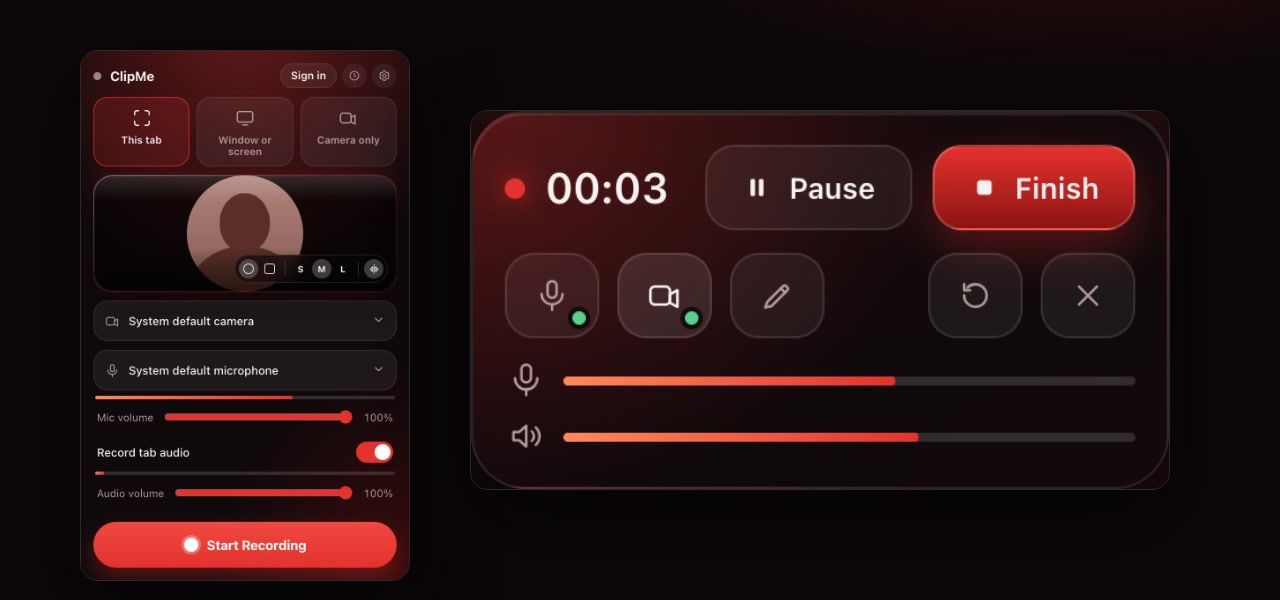
Record a tab, window or screen in Chrome
Add ClipMe to Chrome
Install it from the Chrome Web Store, then click the puzzle icon and pin ClipMe.Choose a source
This tab records the page you are on, with its audio. Window or screen opens Chrome’s picker, where you can also pick a different tab. Camera only records just your webcam.Set up sound
Pick your microphone, and leave tab audio on if the page plays sound. Both meters should move when there is sound. Give each its own volume.Press Record
A 3-2-1 countdown runs (you can skip or turn it off). Pause with Ctrl + Shift + K whenever you need a break.Stop and download
Stop from the floating control bar, the toolbar icon, or Ctrl + Shift + E. The review page opens with your video ready to play, trim and save as MP4.
Which source should you pick?
| Feature | This tab | Window or screen | Camera only |
|---|---|---|---|
| Sound besides your mic | The tab’s audio, on every OS | A picked tab’s audio; whole-screen system audio on Windows and ChromeOS; none for a single app window | Mic only |
| Webcam bubble and drawing | Yes, on the recorded page | No | The camera is the whole frame |
| Click and cursor data | Recorded | Not recorded | Not recorded |
| Best for | Demos, bug reports, meetings in the browser | Desktop apps and multi-window work | Video messages and intros |
Checked on against: Chrome’s screen sharing documentation. Prices and limits change, so check the linked pages before you decide.
Getting a black screen or no sound?
- Black screen on a Mac: open System Settings → Privacy & Security → Screen & System Audio Recording and turn on Google Chrome, then restart Chrome.
- No mic: click the lock or tune icon in the address bar of the ClipMe page and allow the microphone, then check the meter moves.
- No tab sound on Mac: switch from Screen to This tab. macOS only lets Chrome capture a tab’s audio, not the whole system’s.
- Can’t install extensions: use the online screen recorder in a normal tab instead.
Frequently asked questions
Does Chrome have a built-in screen recorder?
Not on Windows or Mac. Chrome can share your screen with a website, but it has no record button of its own. You need an extension like ClipMe, a web recorder, or your operating system’s tool. ChromeOS is the exception: it has Screen capture built in.
How do I screen record a Chrome tab with sound?
Choose This tab in ClipMe. Recording a single tab captures that tab’s audio on every operating system, including macOS, and you can mix your microphone in with its own volume slider.
Can I record my whole screen from Chrome?
Yes. Choose Window or screen and Chrome asks which display to share. On Windows and ChromeOS you can include system audio. On a Mac, Chrome cannot capture system sound for the whole screen, so record a tab if you need its audio.
Is there a keyboard shortcut?
ClipMe starts and stops with Ctrl + Shift + E (Control + Shift + E on a Mac). You can change or turn off every shortcut at chrome://extensions/shortcuts.
Will the recording work in Microsoft Edge or Brave?
ClipMe is built and tested for Chrome and ChromeOS. Edge and Brave are based on the same engine and can install Chrome Web Store extensions, so it usually works there, but we do not test them on every release.
Keep reading
Record your first video in two clicks
Click the ClipMe icon, then Record. Free to record and share with no account, and a free account gets you an MP4 you can actually open. Pro removes the time limit and the watermark.