Guide · Zoom
How to record a Zoom meeting
Zoom’s own recorder works well when you have the desktop app and the host’s permission. When you join from a browser or a Chromebook, record the Zoom tab with ClipMe instead, with everyone’s audio and your mic.
Free plan · No account to record or share · Chrome and ChromeOS
On a phone? ClipMe records on a computer or Chromebook, so open this page there.
Option 1: Zoom’s local recording (desktop app)
Join from the Zoom desktop app
Local recording needs the app for Windows, macOS or Linux, not the browser.Click Record
If you are not the host, Zoom asks the host for permission first.Choose Record on this computer
Cloud recording is the other option and needs a paid account.End the meeting
Zoom converts the recording to MP4 and opens the folder when it is done.
Option 2: Record Zoom in Chrome with ClipMe
For the Zoom web client, a Chromebook, or when you want to trim before you share.
Join the meeting in Chrome
On the Zoom invite page, choose to join from your browser.Open ClipMe on the Zoom tab
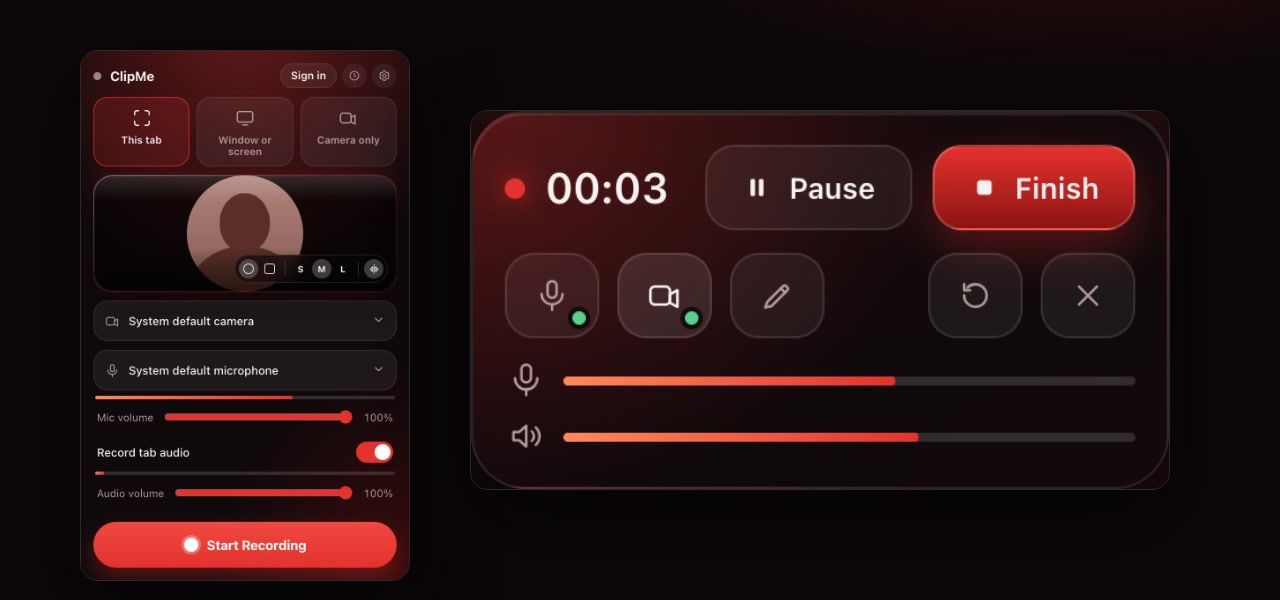
Click the ClipMe icon on that tab and pick This tab.Turn on tab audio and your mic
Speak and watch your mic meter move. Wear headphones so the other voices are not recorded twice.Decide whether to upload
Instant link is on by default: it uploads a copy and makes a link anyone who has it can open. For a private meeting, turn it off in the popup and nothing leaves your computer.Announce it, then press Record
Tell everyone you are recording before you begin.Stop and download
Stop from the control bar or the icon. Trim the waiting-room minutes and save the MP4.
Side by side
| Feature | ClipMe in Chrome | Zoom local recording |
|---|---|---|
| Where it works | Chrome on Windows, macOS and ChromeOS | Zoom desktop app on Windows, macOS and Linux |
| Where it is saved | Your computer, plus an uploaded copy unless you turn Instant link off | Your computer, with Record on this computer |
| Host permission | Not needed to record your own screen; announce it anyway | Required |
| Output | MP4, ready as soon as you stop | MP4, after Zoom converts it |
| Trim before sharing | Yes | No |
| Price | Free up to 5 minutes per recording; Pro ($8 / month) for longer calls | Free on any Zoom plan |
Checked on against: Zoom local recording help. Prices and limits change, so check the linked pages before you decide.
Consent comes first
In many places it is illegal to record a conversation without the consent of everyone in it. Announce the recording at the start, keep the recording to the people who were in the meeting, and delete it when it is no longer needed.
Frequently asked questions
Can I record a Zoom meeting on the free plan?
Yes. Zoom’s local recording is available on free and paid accounts, using the Zoom desktop app for Windows, macOS or Linux. The host has to allow it, or approve your request to record.
How do I record Zoom on a Chromebook?
Zoom’s local recording requires the desktop app on Windows, macOS or Linux. On a Chromebook, join from the browser and record the Zoom tab with ClipMe, with tab audio and your microphone on.
Can I record a Zoom meeting if I am not the host?
In Zoom’s own recorder you need the host’s permission. Recording the meeting in another way does not remove your duty to tell people: announce it at the start and follow your local consent laws.
Does recording the browser tab capture everyone’s voice?
Yes. The Zoom tab’s audio carries the other participants and your microphone carries you. ClipMe mixes both, each with its own volume slider. Use headphones to avoid echo.
Does ClipMe upload my Zoom recording?
Instant link is on by default, so ClipMe also uploads a copy while you record and makes a link anyone who has it can open. For a private meeting, turn Instant link off in the popup before you record and nothing leaves your computer.
What format is the recording?
ClipMe saves an MP4 (H.264 video and AAC audio) that seeks properly in any player. Zoom’s local recording also produces MP4, after Zoom finishes converting it when the meeting ends.
Keep reading
Record your next Zoom call
Click the ClipMe icon, then Record. Free to record and share with no account, and a free account gets you an MP4 you can actually open. Pro removes the time limit and the watermark.